

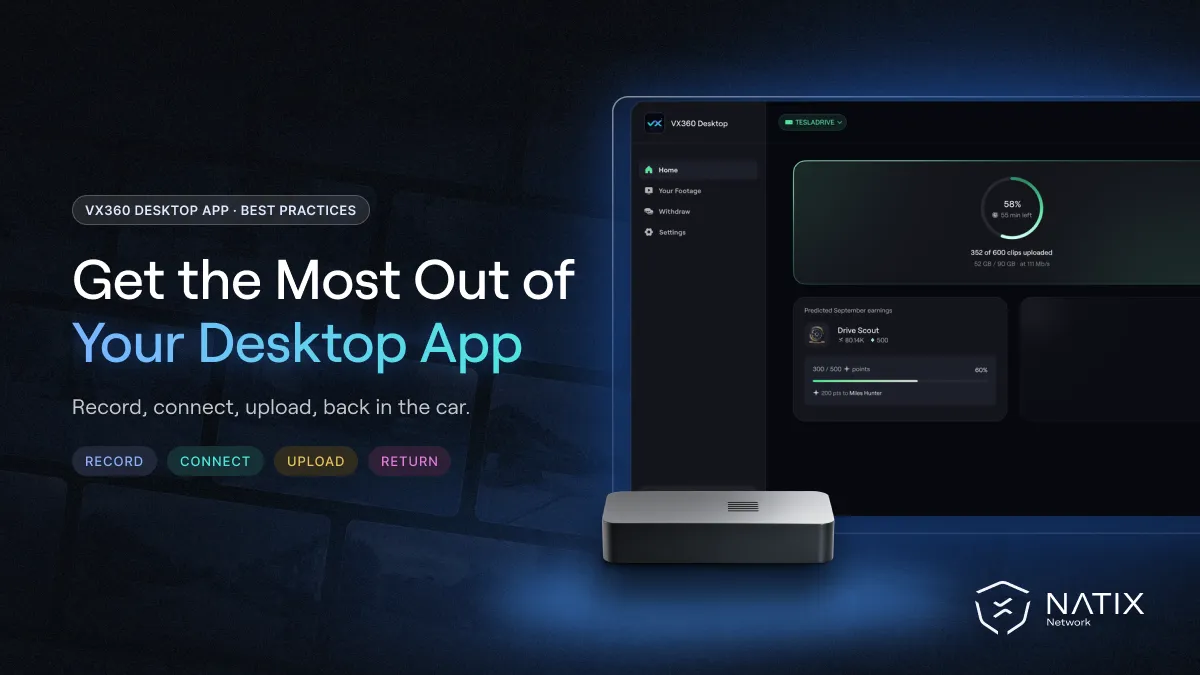
Now that you've migrated to the VX360 Desktop App, your routine is a simple loop. Your Tesla records while you drive. You connect the drive to your computer. The Desktop App scans the footage, calculates your points and uploads what the network needs. Then the drive goes back in the car.
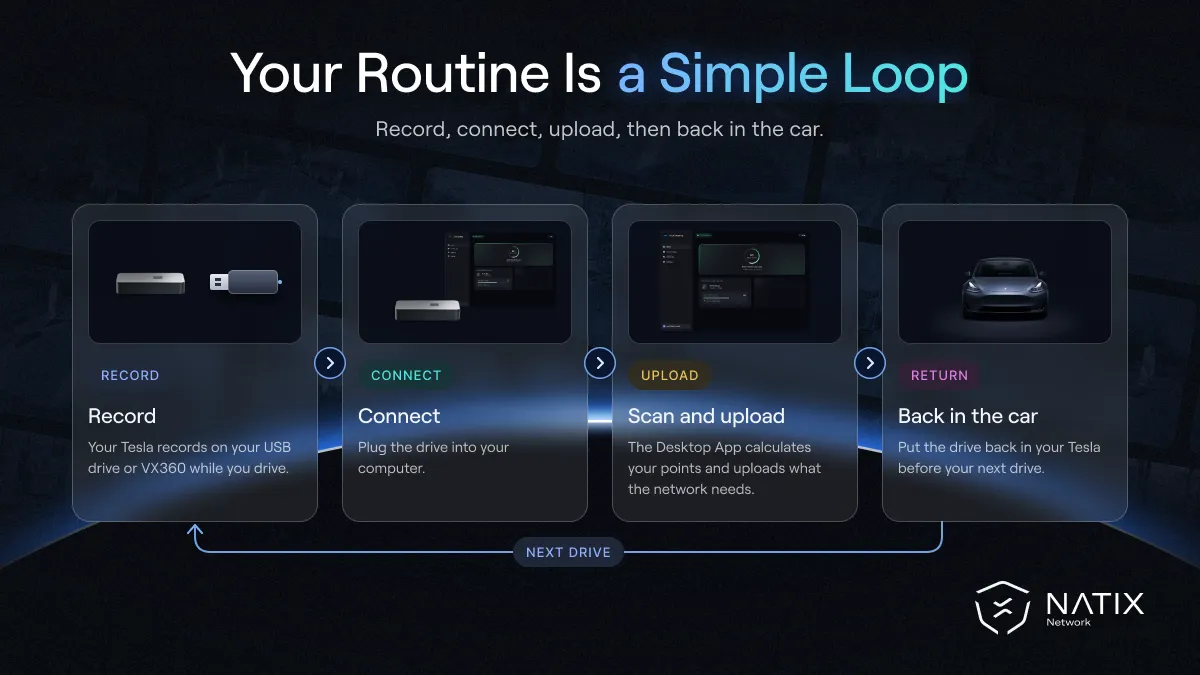
With the Desktop App, uploads are faster, more reliable and happen whenever it suits you. By following a few simple best practices, you can maximize your rewards and avoid losing eligible driving footage. This guide walks you through everything you need to know, from setting up your drive to building your upload routine.
If you haven't migrated yet, start with the guide for the U.S., Japan and Canada or for Europe and all other regions.
Everything begins with what your Tesla records on, and that depends on where you drive and which infotainment processor your Tesla has.
Not sure which processor you have? In your Tesla, go to Controls → Software → Additional Vehicle Information → Infotainment Processor.
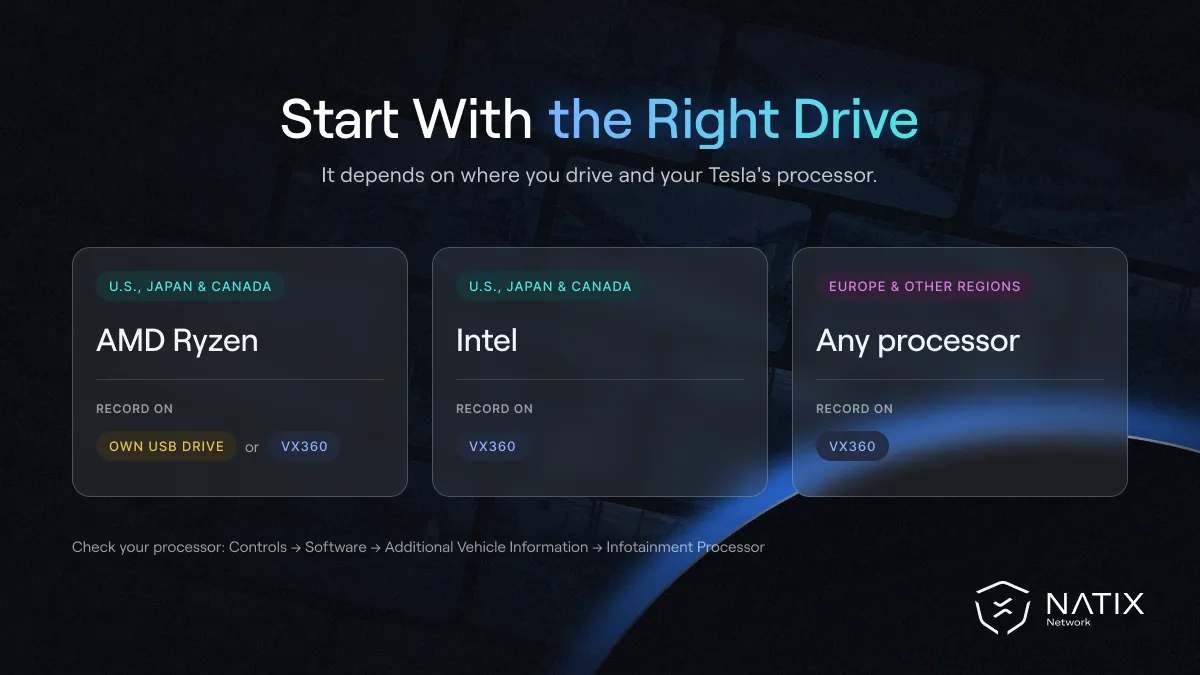
If you go with your own USB drive, pick one with at least 128 GB of storage, a sustained write speed of at least 4 MB/s and USB 2.0 compatibility. Go larger if you drive a lot. The USB drive supplied by Tesla works too.
Whichever you use, only footage from the Tesla linked to your VX360 account counts.
Migration changes how your VX360 works, so the device updates itself afterwards. For that it needs to stay powered on, within range of a Wi-Fi network it already knows, for about 2 to 3 hours, sometimes longer.
There is an easy way to tell the update is done. Plugged into your Tesla, the device appears as a drive called NATIXActive with about 35 GB. Plugged into your computer, it appears as NATIXBackup with 160 GB or more. Don't worry about the 35 GB your Tesla shows: the updated VX360 stores about 12 to 13 hours of driving footage.
If your computer shows NATIXActive instead of NATIXBackup, the update most likely hasn't finished. Leave the device powered on near your Wi-Fi for another 2 to 3 hours. If that doesn't help, or the device collects much less footage than you expect, contact Customer Support.
After this, your VX360 no longer needs Wi-Fi to upload. It collects the footage, and your computer uploads it over its own internet connection.
With the drive sorted, there are three things to know so you earn for every drive and don't lose eligible footage.
The Desktop App can't read encrypted footage, so it isn't eligible for rewards.
Go to Controls → Safety → Encrypt Dashcam Recording and make sure it is turned off. If it was on, you'll need to collect fresh footage, because recordings that were encrypted can't be used.
Only driving footage earns rewards. If you try to upload stationary footage, the Desktop App shows an "Invalid Metadata" error.
You don't need to turn Sentry Mode off. But it uses up your Dashcam's rolling buffer even when no Sentry event is saved, so driving footage you haven't uploaded yet can be overwritten much sooner.
Now you can drive. The question that shapes the rest of your routine is how many hours fit on your drive, because once it is full you start losing footage.
On your own USB drive, Tesla's Dashcam keeps a rolling buffer whose length depends on the drive's size: from up to 1 hour on a drive under 128 GB to up to 24 hours on a 1 TB drive. Your VX360 holds about 12 to 13 hours.
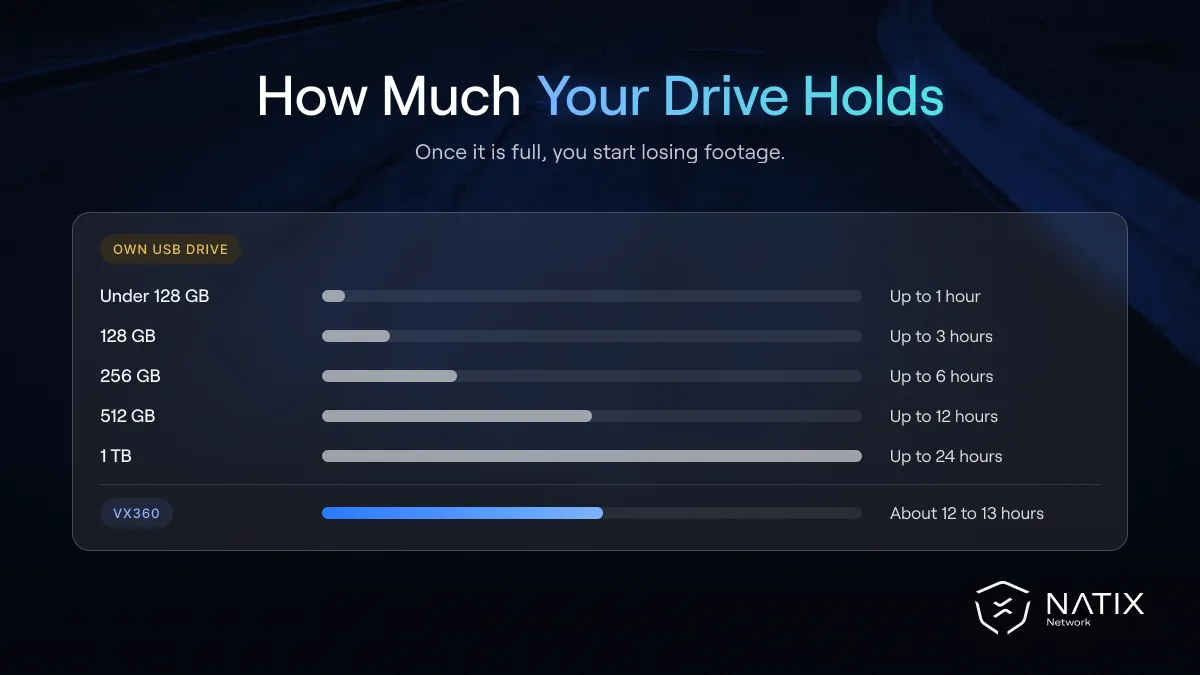
What happens at the limit differs slightly. A USB drive overwrites its oldest recordings with new ones. A VX360 stops saving new trips until you connect it to your computer. The result is the same: kilometers driven can only earn points if the corresponding driving footage is available on your drive.
So if you drive often or cover long distances, upload more frequently. If you record on your own USB drive, you can also use a larger one or swap between several drives.
You don't need to upload after every trip, or every day. Uploading less often doesn't cost you points, as long as the footage is still on the drive when you connect it and is uploaded within 30 days of being recorded.
Build your upload routine around your driving habits and your drive's recording capacity. Connect your drive before it reaches that capacity, and always after a long journey. Use a fast, stable internet connection, and if you have a lot of footage, let it run overnight. These frequencies are a good starting point:
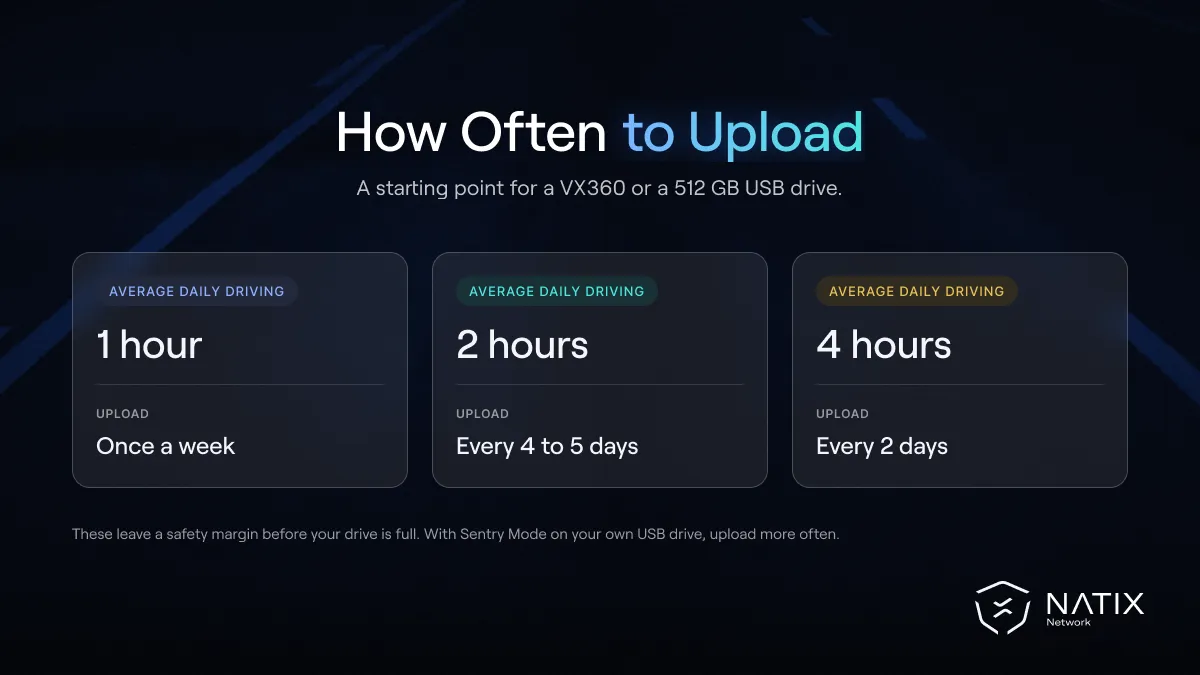
These recommendations leave a safety margin before reaching your drive's recording capacity. If you use your own USB drive with Sentry Mode enabled, you may need to upload more frequently.
When you connect your drive, the Desktop App goes to work. It scans your recordings, identifies eligible driving footage, calculates your points and uploads the footage the network needs. Scanning can take a while if the drive holds a lot of footage or your computer is on the slower side. That is normal, and it is what lets the app filter out unhealthy footage instead of uploading everything.
The important part is the end. Your points are credited only once the entire upload session is completed:
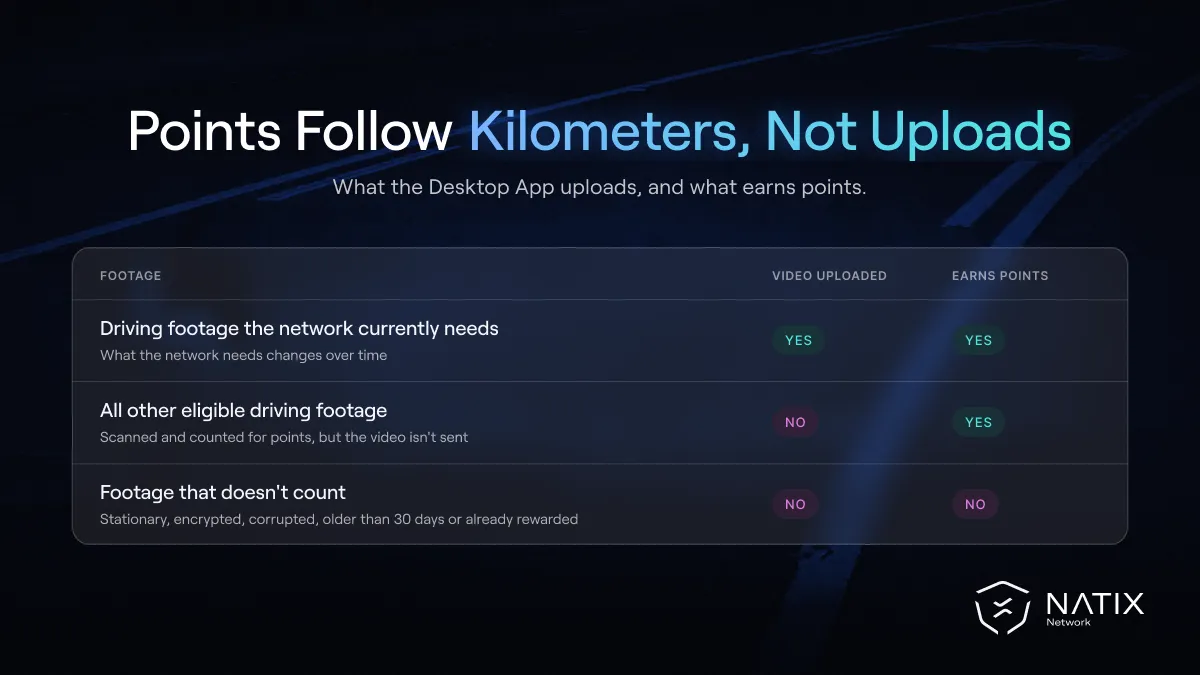
You'll probably notice that the app doesn't upload everything it scans. That is by design, and it doesn't cost you anything: your points are based on the eligible kilometers you drove, not on how much footage is uploaded. The app only uploads the footage the network currently needs, and what it needs changes over time. That selection only decides what gets uploaded, not what you earn. A night drive or a stretch of fast highway still earns its points, as long as the Desktop App has scanned the footage from that trip.
Some footage is neither uploaded nor rewarded: stationary footage, corrupted or incomplete footage, encrypted footage, footage recorded more than 30 days ago, and footage that was already rewarded.
The last step is the easiest one to forget. Once the session is complete and you've checked that your points were credited, safely eject the drive and plug it back into your Tesla before your next drive. Then take a second to confirm the Dashcam is recording.
No recorded driving footage means no points, and the loop starts again.
Most problems trace back to one of the steps above.
The cause is usually encryption or stationary footage. Check that Encrypt Dashcam Recording is off. Then connect the drive to your computer, open the TeslaCam/RecentClips folder if it is there, and look at whether the clips show your car driving or parked. Only driving footage is eligible. If Sentry Mode is filling your own USB drive, consider switching to your VX360.
If you're missing footage, or only a few minutes of driving show up, work back through the loop. Does the drive have enough capacity? Are you uploading before older footage is overwritten? Is encryption off, and is the Dashcam recording? Is Sentry Mode filling your USB drive? With a VX360, also check that it shows NATIXBackup with at least 160 GB on your computer.
The Desktop App has most likely already rewarded this footage. It skips anything already processed, including footage uploaded before you migrated, along with old and ineligible footage. Collect some fresh driving footage and try again. If it keeps happening, check the encryption setting and that the Dashcam is recording.
If scanning seems to take forever, give it time. The app is analyzing your recordings, checking their quality, calculating your points and selecting footage. Keep it open and the drive connected until it finishes. The upload starts automatically afterwards.
Your VX360 may not have completed its firmware update. Leave it powered on and within range of a known Wi-Fi network for another 2 to 3 hours.
Reconnect it to your computer. If it still shows NATIXActive instead of NATIXBackup (160 GB or more), contact Customer Support.
Do I need to upload every day? No. Upload as often as suits you, as long as your footage hasn't been overwritten and is uploaded within 30 days of being recorded.
Do I earn points for footage that isn't uploaded? Yes. Points are based on eligible kilometers driven. The footage only needs to be on your drive so the Desktop App can scan it.
Can I earn points at night or on the highway? Yes. What the app selects for upload doesn't change which kilometers earn points.
Can I keep Sentry Mode on? Yes. If you use it regularly, record with your VX360, or upload more often from your own USB drive.
Can I switch between my own USB drive and my VX360? Yes, if you drive in the U.S., Japan or Canada and your Tesla has an AMD Ryzen processor.
Does my VX360 still need Wi-Fi? Not for uploads. Once it has updated after migration, your computer handles them.
Can I still use the VX360 Mobile App after migrating? No. Once you migrate to the Desktop App, you no longer need the Mobile App. If you use a VX360, its Bluetooth is disabled after migration, so you can no longer monitor uploads or check your device storage in the Mobile App. Uploads and reward tracking are handled in the Desktop App.
Before you drive:
When you upload:
Need more help? Reach out to our Customer Support team.


